
You Changed the Password. The Attacker Is Still Logged In.
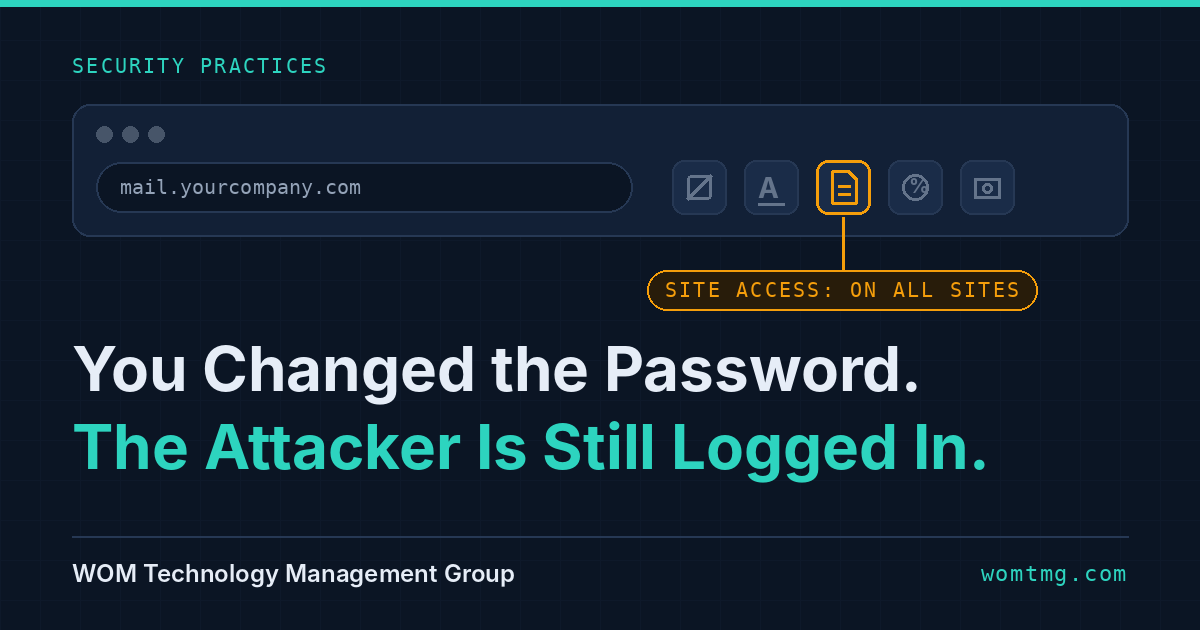
A stolen password isn't the only way into your business accounts. A browser extension can copy the login itself, after the password and the security code have already done their job.
A browser extension is a small add-on program installed inside a web browser, such as Chrome or Edge, to add a feature like blocking ads, converting PDFs, or checking grammar. A malicious browser extension is one that uses the access the browser gives it to copy what the user sees, types, and is signed in to.
Here is how it tends to look from the owner's chair. This scenario is illustrative, not a specific customer.
Your office manager's email gets signed in to from another country. You change her password. The next morning, it happens again. Her computer scans clean. Nobody clicked anything strange this week.
The cause is a free PDF tool she added to her browser almost a year ago. It has worked fine the whole time. It has also been copying her logins the whole time.
What is a browser extension, in plain English?
A browser extension is an app for your web browser. The coupon finder, the ad blocker, the grammar checker, the PDF converter, the screenshot tool - those little icons next to the address bar are extensions.
Most people have several and could not name them all.
To do its job, an extension asks for permission. The most common request reads: "Read and change all your data on all websites." It looks routine, so people click Add.
It means exactly what it says. Every page, on every site. Email, payroll, the bank, the customer database.
Think of it as hiring a helper who stands behind your chair all day. An honest helper is useful. Either way, the helper sees everything on your screen.
How can an extension sign in as my employee without the password?
It copies the proof that she already signed in.
When you sign in to a website, you prove who you are once: the password, then the code from your phone. The website then hands your browser a small file called a session cookie, so you are not asked again on every click.
A session cookie works like a wristband at a concert. Staff check your ticket once at the gate. After that, they only look at your wrist. Anyone wearing the wristband gets in.
An extension that has been granted cookie access can read those wristbands. Chrome's own developer documentation describes the feature: an extension with the cookies permission, plus permission for a site, can retrieve that site's cookies (Chrome cookies API reference). That includes cookies flagged HttpOnly, a protection that hides a cookie from scripts on a web page but was not designed to hide it from the browser's own extension system.
The attacker loads the copied cookie into their own browser. The website sees a valid wristband. There is no password prompt and no code sent to a phone, because that check already happened - for the real employee.
This is not theoretical. In January 2026, researchers at Socket documented five Chrome extensions posing as productivity tools for Workday, NetSuite, and SuccessFactors. According to Socket's report, the extensions copied sign-in cookies and blocked the security pages an administrator would use to respond.
Why didn't changing the password fix it?
Three reasons, and they stack.
- The password was never the thing stolen. The attacker is using a copied wristband. A new password does not cancel a wristband that was already issued.
- The extension is still installed. When your employee signs in with her new password, the website issues a new wristband. The extension copies that one too. This is why the problem is back the next morning.
- Signing her out everywhere has gaps. Microsoft's own guidance says its sign-in tokens usually last around an hour, and that "Microsoft Entra ID can't directly revoke a session token issued by an application" (Microsoft Learn). In plain terms: signing her out of Microsoft 365 does not sign her out of the accounting, payroll, or CRM app that issued its own wristband.
The usual fixes aim at the password. The password was not the problem.
Why didn't our security software see it?
Because nothing on the computer looked wrong.
Antivirus and EDR (endpoint detection and response, the software that watches computers for attacker behavior) look for suspicious programs, files, and activity on the machine.
An extension is not a new program. It runs inside the browser you already approved. It uses the browser's normal internet connection. It does what the user gave it permission to do.
So there is no strange file, no new program starting with the computer, and no alert.
The sign-in looks clean from the other side too. The website was handed a real wristband, so it has no reason to object.
How does a good extension turn bad?
Two documented routes.
- It was built to deceive. The five extensions Socket reported were listed in the Chrome Web Store and presented as time-savers. They looked like the tools people install on purpose.
- A trusted extension gets hijacked. In December 2024, attackers phished an employee at Cyberhaven, a security company, and published a malicious version of its Chrome extension. Extensions update automatically, so browsers picked it up on their own. Cyberhaven's incident disclosure says the malicious code was active from 1:32 AM UTC on December 25 to 2:50 AM UTC on December 26.
Nobody who had that extension installed did anything wrong. They approved a legitimate tool from a security vendor, and it changed underneath them.
That is the uncomfortable lesson: approving an extension is not a one-time decision.
What are the warning signs?
No single sign proves it. Together they point at the browser.
- Sign-ins from places your employee is not: another state or country, at hours she was not working.
- The problem returns after a password reset: the clearest clue that the password is not what was taken.
- The computer scans clean: no malware found, yet the account keeps getting used.
- Changes nobody made: new email forwarding rules, a new phone added for security codes, files shared outside the company.
- An extension nobody remembers installing: or one whose name changed.
How do I check my own browser in five minutes?
- Open your browser's extension list. In Chrome, type chrome://extensions in the address bar. In Edge, type edge://extensions.
- Read every name. If you do not recognize one, or have not used it in months, remove it.
- For each one you keep, click Details and look at "Site access." "On all sites" means it can see everything you do in the browser.
- Ask whether the tool needs that. A PDF converter does not need to see your bank.
- Repeat for every browser profile and every computer where you sign in to work accounts, including the one at home.
That covers one person. A business needs it handled for everyone at once.
How does a business get extensions under control?
- Inventory what is installed. You cannot manage a list you have never seen. Collect every extension, on every browser, on every work computer.
- Block by default. Managed browsers can be set so that only approved extensions install. Google's admin console calls the setting "Block all apps, admin manages allowlist" (Chrome Enterprise Help). Employees can still request a tool; someone reviews it first.
- Plan for approved ones that turn bad. Keep the approved list short. Review it on a schedule. Know who can remove an extension from every computer the same day a vendor announces a compromise.
- Respond in the right order. Remove the extension first. Then sign the employee out everywhere and reset the password. Then sign out of each business app individually, because the main sign-out does not reach all of them. Done in any other order, the attacker gets a fresh wristband.
How WOM helps
Extension control is a policy job and a device job. We do both.
- We write the policy and set it: For managed customers under Helpdesk Support, we help write the browser extension policy and set it on every work computer. Which extensions are approved, who can request a new one, and who reviews it are decided once and enforced everywhere.
- Extensions blocked unless approved: Application Allowlisting blocks browser extensions unless they are on your allow list, the same way it handles software. A new or unknown extension does not run until it is reviewed.
- Someone watching the accounts: Cyber Risk Management covers 24/7 threat monitoring, anomaly detection, and configuration hardening, so a sign-in from the wrong place is noticed and acted on.
- An outside set of eyes: A Third-Party Assessment reviews what is configured against what your policies say, by an assessor with no role in your daily IT.
- When an account is already being used: Digital Forensics & Incident Response finds how they got in and what they reached. If it is happening now, go to /under-attack or call +1 (888) 966-7228.
Not sure where you stand? The Security Self-Check takes a few minutes, and the Incident First Hour tool walks through what to do if an account is already compromised.
What this means for a business your size
A 15-person office has no browser team, and that is fine. It needs three things.
A list of what is installed. A rule that new extensions get approved before they are added. One person, inside or outside the company, who owns both.
The cost of skipping it is specific. Every extension with access to all sites can see everything your staff can: customer records, payroll, banking, email. Your password policy and your MFA do not change that, because the extension works after both.
And if your cyber insurance application says you control what software runs on company devices, extensions are part of that answer.
On the Treasure Coast, most of the offices we see run their whole day in a browser: practice management, accounting, scheduling, banking. If an account does get taken over, Florida's breach notification deadlines may apply - the Florida section of our DFIR page covers who must be told and when.
Start with the five-minute check above. Then ask whoever manages your computers one question: can you show me every extension installed in this company?
If the answer is no, that is your first gap.
Sources
- Chrome for Developers - chrome.cookies API reference
- Socket Threat Research - 5 Malicious Chrome Extensions Enable Session Hijacking in Enterprise HR and ERP Systems (January 15, 2026)
- Cyberhaven - Cyberhaven's Chrome extension security incident and what we're doing about it (December 27, 2024)
- Microsoft Learn - Revoke user access in Microsoft Entra ID
- Chrome Enterprise and Education Help - Allow or block apps and extensions
Disclaimer. This article is provided for general information only. It is not legal, regulatory, or professional advice, and reading it does not create a client relationship with WOM Technology Management Group. Regulations, threats, and vendor products change; specific obligations depend on your industry, jurisdiction, contracts, and data. Verify anything you plan to rely on against the primary source and consult qualified counsel or a security professional before acting.
Sources are cited as of the last-reviewed date shown above. Where a linked source has moved or been withdrawn, the citation reflects what was verifiable at review time.